
自製小工具-時間戳記產生器
前言:
在進行資料命名、紀錄日誌(Log)或是開發調試時,我們常需要一個獨特且精確的時間格式。今天分享一個輕量化的 HTML 工具,它能一鍵產生「日期 + 當天總秒數」以及標準的 「Unix Timestamp」。
1. 為什麼使用 yyyymmdd + s 格式?
一般的時間格式(如 202603272100)雖然直觀,但在進行數學運算或排序時,秒數的累加邏輯有時更有用。 這個工具採用的格式邏輯如下:
- 前 8 位數:當前日期(例如
20260327)。 - 後方數字:自當天凌晨 00:00:00 起算經過的總秒數。
- 計算公式: $小時\times 3600+分鐘\times 60+秒$
- 範例:凌晨 00:01:05 會顯示為
2026032765。
2. 工具功能亮點
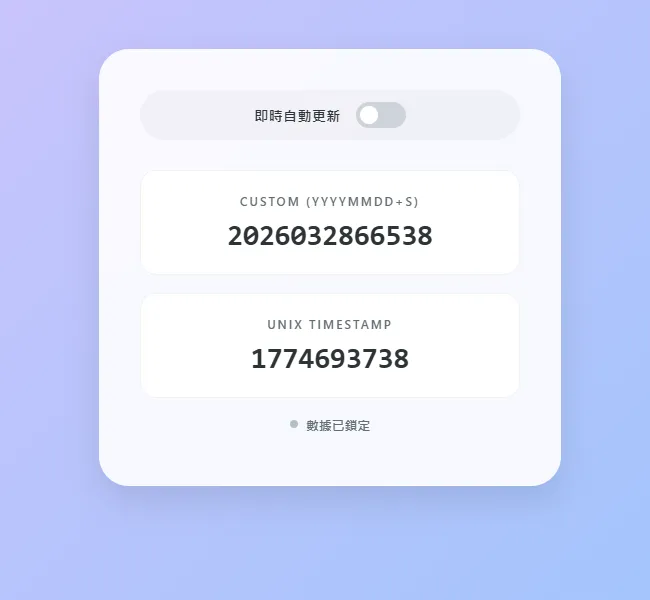
- 預設靜態鎖定:開啟網頁時自動抓取當下時間並鎖定,避免數據跳動難以選取。
- 即時同步開關:內建切換開關,開啟後可即時追蹤每秒變化。
- 點擊即複製:無需手動選取,直接點擊數據卡片即可完成複製,並提供視覺回饋。
- 現代感介面:採用毛玻璃質感與莫蘭迪漸層配色,美觀且專業。
執行畫面截圖
3. 完整工具代碼
你可以將以下代碼複製並儲存為 .html 檔案,或直接嵌入支援 HTML 的 Blog 內文中:
<!DOCTYPE html>
<html lang="zh-TW">
<head>
    <meta charset="UTF-8">
    <meta name="viewport" content="width=device-width, initial-scale=1.0">
    <title>時間戳記產生器</title>
    <style>
        /* [CSS] 定義全域變數:方便修改顏色與風格 */
        :root {
            --bg-gradient: linear-gradient(135deg, #e0c3fc 0%, #8ec5fc 100%); /* 柔和漸層背景 */
            --card-bg: rgba(255, 255, 255, 0.9); /* 半透明卡片背景 */
            --text-main: #2d3436; /* 主文字顏色 */
            --text-sub: #636e72; /* 次要文字顏色 */
            --primary: #2ecc71; /* 開啟狀態的綠色 */
            --shadow: 0 15px 35px rgba(0,0,0,0.1); /* 卡片陰影 */
        }

        /* [CSS] Body 設定:確保背景佔滿整個螢幕且內容置中 */
        body {
            font-family: 'Segoe UI', system-ui, sans-serif;
            display: flex;
            flex-direction: column;
            align-items: center;
            justify-content: center;
            margin: 0;
            padding: 0;
            width: 100%;
            height: 100vh; /* 關鍵:確保高度佔滿瀏覽器 100% 可視區域 */
            background: var(--bg-gradient);
            color: var(--text-main);
            overflow: hidden; /* 防止出現不必要的滾動條 */
        }

        /* [CSS] 主容器:毛玻璃質感的卡片 */
        .stamp-container {
            background: var(--card-bg);
            padding: 2.5rem;
            border-radius: 30px;
            box-shadow: var(--shadow);
            text-align: center;
            width: 90%;
            max-width: 380px;
            backdrop-filter: blur(10px); /* 背景模糊效果 */
            border: 1px solid rgba(255, 255, 255, 0.2);
            transition: transform 0.3s ease;
        }

        .stamp-container:hover {
            transform: translateY(-5px); /* 滑過時微微上浮 */
        }

        /* [CSS] 開關容器樣式 */
        .switch-container {
            display: flex;
            align-items: center;
            justify-content: center;
            margin-bottom: 30px;
            gap: 15px;
            padding: 12px;
            background: rgba(0, 0, 0, 0.03);
            border-radius: 50px;
        }

        /* [CSS] Switch 開關動畫邏輯 */
        .switch {
            position: relative;
            display: inline-block;
            width: 50px;
            height: 26px;
        }
        .switch input { opacity: 0; width: 0; height: 0; }
        .slider {
            position: absolute;
            cursor: pointer;
            top: 0; left: 0; right: 0; bottom: 0;
            background-color: #ced4da;
            transition: .4s;
            border-radius: 34px;
        }
        .slider:before {
            position: absolute; content: "";
            height: 18px; width: 18px;
            left: 4px; bottom: 4px;
            background-color: white;
            transition: .4s;
            border-radius: 50%;
        }
        input:checked + .slider { background-color: var(--primary); }
        input:checked + .slider:before { transform: translateX(24px); }

        /* [CSS] 數據卡片:可點擊區域 */
        .copy-card {
            background: #ffffff;
            border: 1px solid rgba(0,0,0,0.05);
            border-radius: 16px;
            padding: 22px;
            margin-bottom: 18px;
            cursor: pointer;
            transition: all 0.2s ease;
        }
        .copy-card:hover {
            border-color: var(--primary);
            background: #fafffa;
            transform: scale(1.02);
        }
        .label {
            font-size: 0.75rem;
            color: var(--text-sub);
            margin-bottom: 10px;
            display: block;
            text-transform: uppercase;
            letter-spacing: 2px;
            font-weight: 600;
        }
        .value {
            font-family: 'Consolas', monospace;
            font-size: 1.8rem;
            font-weight: 700;
        }

        /* [CSS] 狀態與提示樣式 */
        #status-text {
            font-size: 0.8rem;
            font-weight: 600;
            display: flex;
            align-items: center;
            justify-content: center;
            gap: 8px;
        }
        .status-dot { height: 8px; width: 8px; border-radius: 50%; }

        .toast {
            position: fixed;
            bottom: 40px;
            background: rgba(45, 52, 54, 0.95);
            color: white;
            padding: 12px 28px;
            border-radius: 50px;
            opacity: 0;
            transition: 0.3s;
            z-index: 1000;
            box-shadow: 0 5px 15px rgba(0,0,0,0.2);
        }
    </style>
</head>
<body>

    <div class="stamp-container">
        <div class="switch-container">
            <span style="font-size: 0.9rem; font-weight: 600;">即時自動更新</span>
            <label class="switch">
                <input type="checkbox" id="autoUpdateToggle" onchange="toggleUpdate()">
                <span class="slider"></span>
            </label>
        </div>

        <div class="copy-card" onclick="copyText('customValue')">
            <span class="label">Custom (yyyymmdd+s)</span>
            <div id="customValue" class="value">----</div>
        </div>

        <div class="copy-card" onclick="copyText('unixValue')">
            <span class="label">Unix Timestamp</span>
            <div id="unixValue" class="value">----</div>
        </div>

        <p id="status-text" style="color: #636e72;">
            <span class="status-dot" style="background-color: #b2bec3;"></span>數據已鎖定
        </p>
    </div>

    <div id="toast" class="toast">✅ 已成功複製</div>

    <script>
        /* [JS] 全域變數初始化 */
        let updateInterval = null;
        const toggle = document.getElementById('autoUpdateToggle');
        const statusText = document.getElementById('status-text');

        /**
         * [JS] 核心邏輯:更新時間數值
         */
        function updateTime() {
            const now = new Date();

            // 1. 產生 YYYYMMDD
            const yyyy = now.getFullYear();
            const mm = String(now.getMonth() + 1).padStart(2, '0');
            const dd = String(now.getDate()).padStart(2, '0');

            // 2. 計算當天總秒數
            const s = (now.getHours() * 3600) + (now.getMinutes() * 60) + now.getSeconds();

            // 3. 渲染到畫面上
            document.getElementById('customValue').innerText = `${yyyy}${mm}${dd}${s}`;
            document.getElementById('unixValue').innerText = Math.floor(now.getTime() / 1000);
        }

        /**
         * [JS] 切換自動更新狀態
         */
        function toggleUpdate() {
            if (toggle.checked) {
                // 啟動每秒更新
                updateInterval = setInterval(updateTime, 1000);
                statusText.innerHTML = `<span class="status-dot" style="background-color: #2ecc71;"></span>數據同步中`;
                statusText.style.color = "#2ecc71";
            } else {
                // 停止更新
                clearInterval(updateInterval);
                updateInterval = null;
                statusText.innerHTML = `<span class="status-dot" style="background-color: #b2bec3;"></span>數據已鎖定`;
                statusText.style.color = "#636e72";
            }
        }

        /**
         * [JS] 複製功能
         */
        function copyText(elementId) {
            const text = document.getElementById(elementId).innerText;
            navigator.clipboard.writeText(text).then(() => {
                const toast = document.getElementById('toast');
                toast.innerText = `✅ 已複製: ${text}`;
                toast.style.opacity = '1';
                setTimeout(() => { toast.style.opacity = '0'; }, 1000);
            });
        }

        // 頁面開啟後,立即執行第一次更新
        window.onload = updateTime;
    </script>
</body>
</html>
Exported: 3/27/2026 21:13:40
Link: https://gemini.google.com/app/7eee420e4ee15661
Powered by Gemini Exporter
以上由 Gemini 產生,加上chrome套件AI 對話匯出器 匯出內容
📖 後記
之前ChatGPT跟Gemini,要把內容會出來,ChatGPT沒有外掛能用,Gemini有
所以這篇用外掛直接匯出,今天用ChatGPT時發現一個用法
請把 有關 frontmatter 整理成一份,我可以張貼在我的blog的文章就會整理一份資料在一個訊息欄裡,可以直接複製!